
USER ACCOUNTS · ACCESS RECOVERY
Forgot your password?
Get back to your account.
To recover access, start from the official login page and the email address associated with your account. This guide explains how to request recovery, check the received message, and continue when the usual process is unavailable.
Password recovery does not grant new permissions or access to another store. If you can log in but cannot see the required administration area, your access and selected store should be checked first.
Go through the guide
VISUAL GUIDE · PASSWORD RECOVERY
From the request to a new password
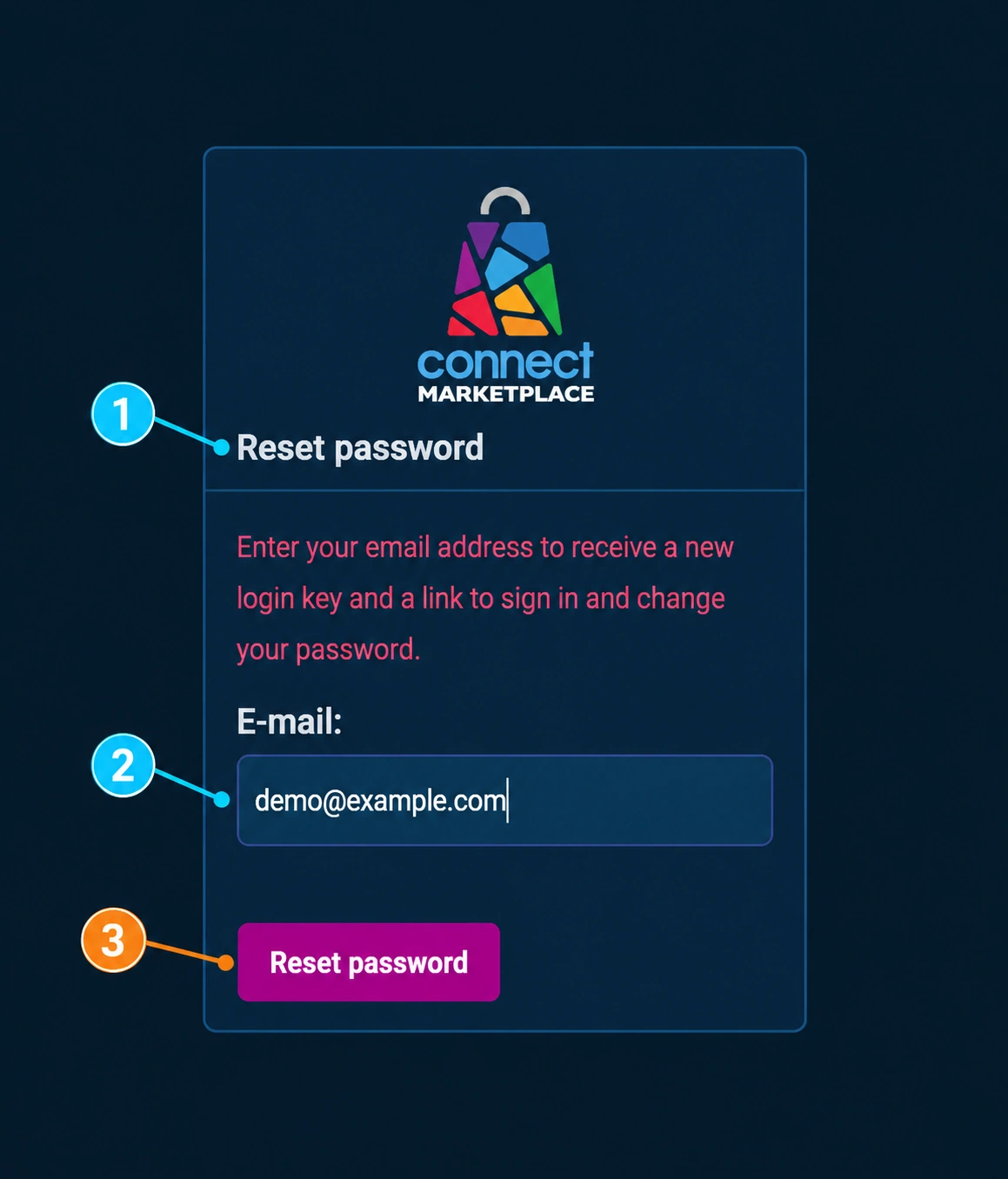
The numbers connect the overview with the form and infographic. The images are in English so that the same instructions can be used with all language versions.
- 1Open the form Reset password.
- 2Enter your address in E-mail.
- 3Submit the request using the Reset passwordbutton.
- 4Check the message in your inbox.
- 5Follow the instructions and set a new password.
The demo@example.com address in the image is only an example. In the actual process, enter the address associated with your account.
1. Open the appropriate login page
To access the administration, use the official address you received when your account was assigned. Start the recovery from the corresponding login form, using the available forgotten-password option. In the English interface, the recovery form displays the title Reset password (label 1).
If you also have a customer account, check that you are recovering access for the place where you want to work. Do not open a new account just because you do not remember the password for your existing one.
2. Request recovery for your email address
Enter the email address associated with the account and submit the request according to the displayed instructions. Check the spelling of the address and use an inbox that you are authorized to access.
Follow the displayed message. If recovery includes email, open your own inbox and look for the system message. You do not need to send multiple requests in succession while checking whether the message has arrived.
- Check your inbox, spam folder, and any quarantine folder.
- Search your inbox by the platform name and the time of the request.
- If your company filters incoming mail, ask the person who manages the email system to check it.
3. Complete the process from the message
Make sure the message is connected to the recovery you just requested. Open the official link and follow the displayed steps to return to the account and set a new password.
If the system shows that the link is no longer valid or has already been used, return to the official form and request a new one. Do not send the link to another person: it may enable access to your account.
- Set a unique password that you do not use for other business services.
- Confirm the change according to the on-screen instructions.
- Check the login with the new password at the appropriate address.
- If you use a password manager, update the saved entry after the change is successful.
After submitting the request: the message and new password
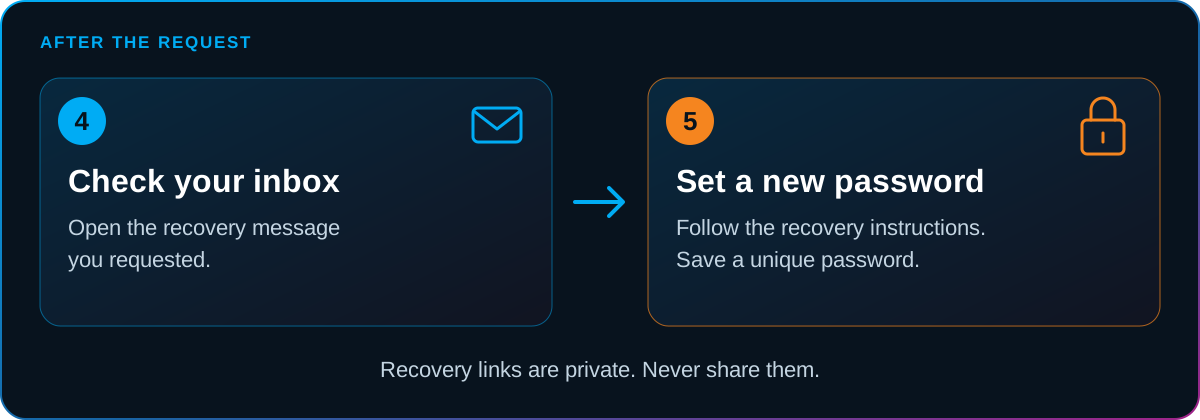
Check the request
Open the message connected to the recovery you requested yourself. Do not forward it to others.
Follow the displayed process
The link takes you to the next step of the recovery; the instructions and appearance may vary by account.
Confirm the new login
After saving, check access to the official administration with the new password.
When the message does not arrive or you no longer have the old address
Check that you entered the address actually associated with the account. If you do not know which address was used or have lost access to the old inbox, contact the responsible person and Connect Support.
Provide the store name, your name, the previous user address if you know it, and a description of the change. Support needs to verify the request and agree on the next step. A message from a new address alone does not confirm the right to someone else’s account.
Check access after recovery
Confirm that you are signed in with your own account and that you can see the appropriate store. If login works but the options required for your work are missing, request an authorization review instead of repeating the recovery.
If you received an unexpected recovery message or suspect that someone used your account, do not share links or codes. Notify the responsible person and Support for verification.
User roles and permissions · Account security and access removal
Frequently asked questions
Will password recovery include administrator access?
No. You are recovering the login for an existing account. Assigning seller access and changing permissions are separate processes.
Can I send my old password to Support?
No. Send the account identification details and a description of the problem, without the old or new password, recovery links, or one-time codes.
What if the new password does not work either?
Check the login address, selected account, and the entered data. Note the exact message and time of the attempt and send them to Support.