
USER ACCOUNTS · STORE AND LANGUAGE
The right store.
The right content in the right language.
Before making any change, check where you are working and which language version you are editing. The seller, public storefront, administration language, and content language have different roles.
Different selection options may be available for your account, and some may be predetermined. You do not need to see all of the platform's stores and languages to have the correct access for your work.
Go through the guide
VISUAL GUIDE · THREE SEPARATE SELECTIONS
Store, interface language, and content language
Which store am I viewing?
The storefront selector determines the context or combined view, according to the page's available options. In the first image, follow labels 1–3.
Which language am I working in?
The user menu determines the language of administration menu and button names. In the second image, follow labels 4–5.
Which text am I editing?
The language of content determines the language version of the content. In the third image, follow labels 6–7.
Check the storefront, interface language, and content language selections separately. None of these selections alone is a command for automatic translation.
The images show an English interface with sample store names and an anonymized account. The languages in the menus are listed by their original names, as in the actual administration.
Four data points to distinguish
Seller
The business account to which the data you are working on belongs, according to the platform settings.
Public store or storefront
The web address and view visited by customers. Multiple storefronts may use shared content.
Interface and content language
The interface language determines the menu names. The content language determines which version of names and descriptions you are editing.
Changing the menu language does not confirm that you have changed the language of the product or page being edited. Check the separate content language selection when available.
Visual display: selecting a storefront
On the dashboard, the storefront selector is located in the upper part of the workspace. On other pages, the selection or filters may be displayed differently; check the context of the page you are currently using.
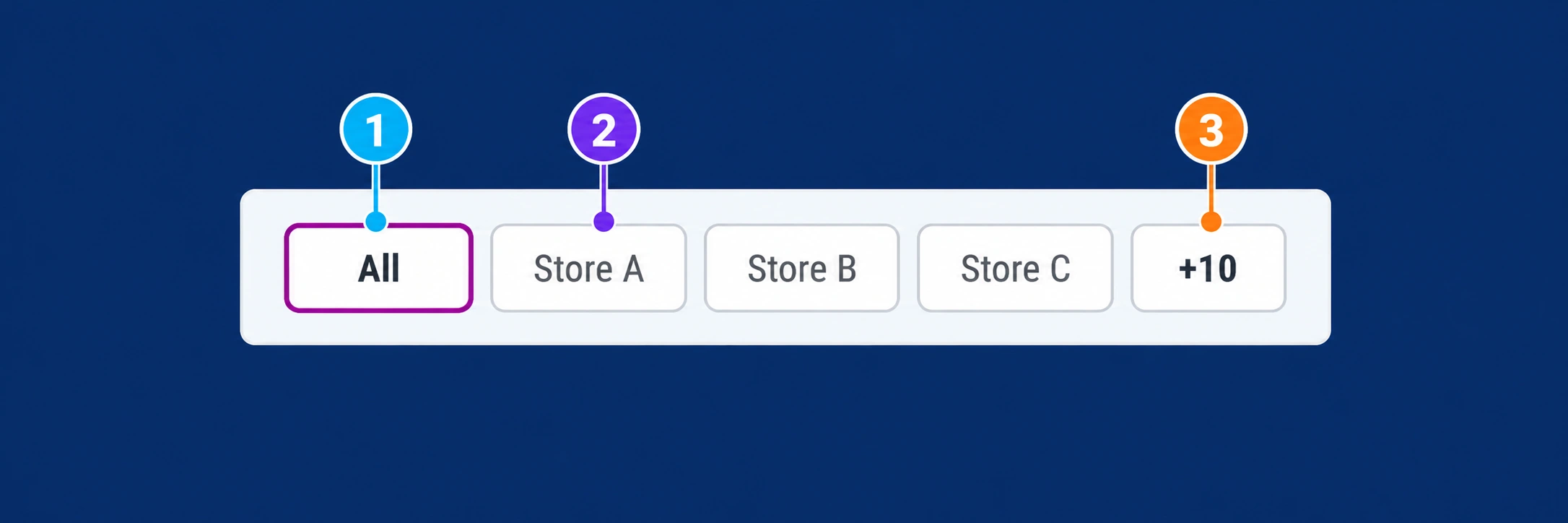
1 · All
Opens a combined view of the storefronts covered by the selection, within the available access. It does not grant new permissions or change the data owner.
2 · Individual store
Click the logo or name of the desired storefront. After changing it, check the active selection and displayed data, especially before editing.
3 · +N
Opens additional storefronts that did not fit in the initial bar. The +10 shown in the image is an example of the number of remaining stores; find the desired option and confirm the selection.
Selecting one store does not prove that all records and settings are limited to that store only. Some content and templates may be shared. Before making a change, check the ownership and scope of the specific record.
How to change the administration interface language
- Open the account menu by clicking your initials in the upper right (label 4).
- Open the item showing the current language, English in the image (label 5).
- In the submenu, select the language in which you want to see the administration menus and buttons.
- After loading, check the menu names. Separately check the content language before editing it.
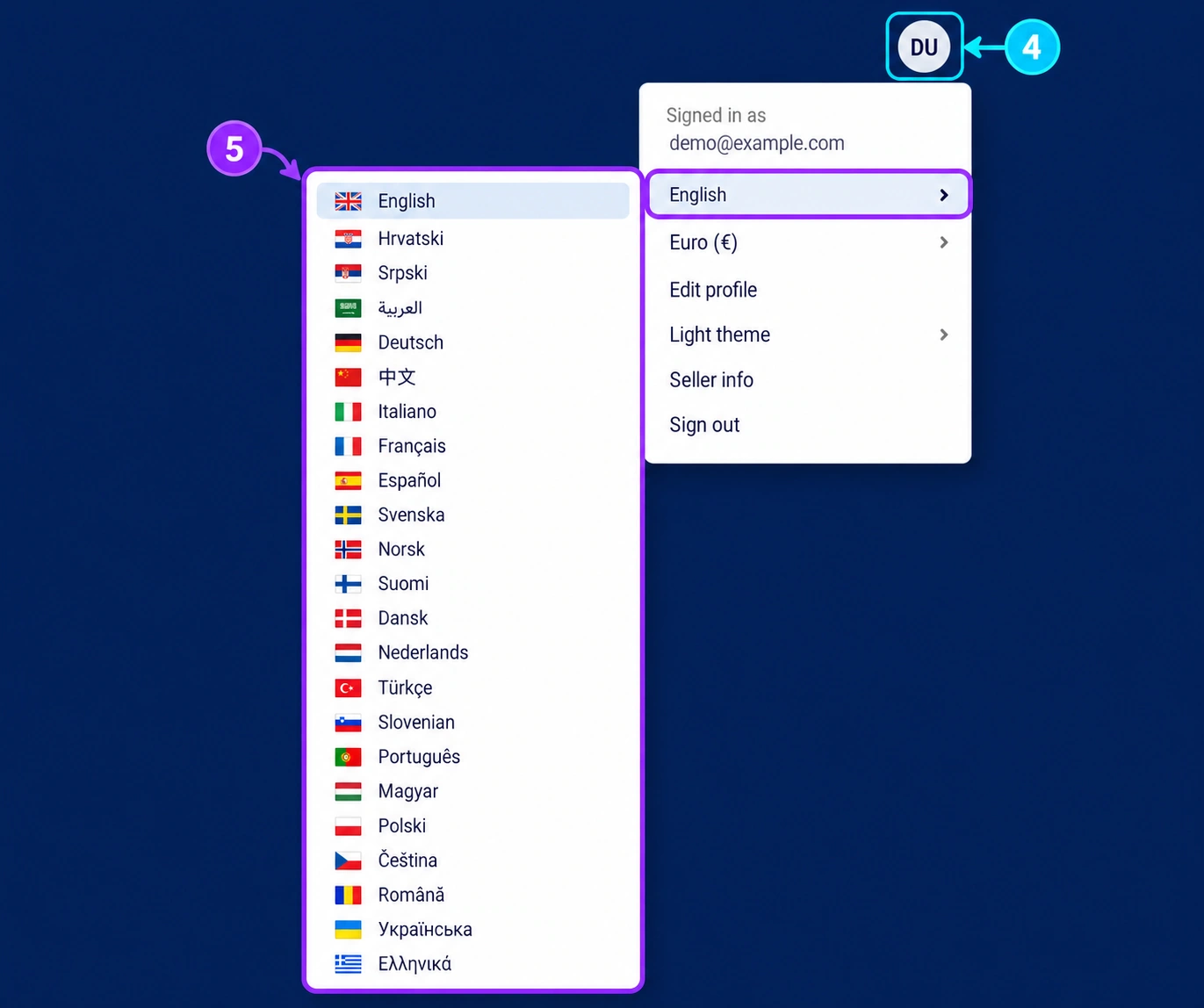
Selecting the menu language does not translate existing products and pages, nor does it confirm that the same language version is active in the record being edited. The Language setting in the user profile is also not a selector for the product language version.
The list of administration languages may be broader than the languages published on an individual storefront. The presence of a language in the list does not confirm that all of its content has been translated.
1. Confirm the seller and store
After logging in, review the seller name and the available context selections in the administration. If you work for multiple stores, select the one for which you received the task.
Open a known product or another appropriate record and check its ownership before making changes. If the selection is unavailable or the expected store is missing, request an account and permissions review.
How to select the content language version
In the displayed product catalog, the selector is the flag next to the search field. The open menu is titled The language of content. On other forms, the control may be located differently.
- Open the flag selector (label 6).
- Select the desired content language; in the image, English is selected (label 7).
- Open the appropriate product or page and check the language on the form itself before entering anything.
- Enter the content in the corresponding language fields and save the record.
- Reopen the same record in the same language and check the saved text and public view.
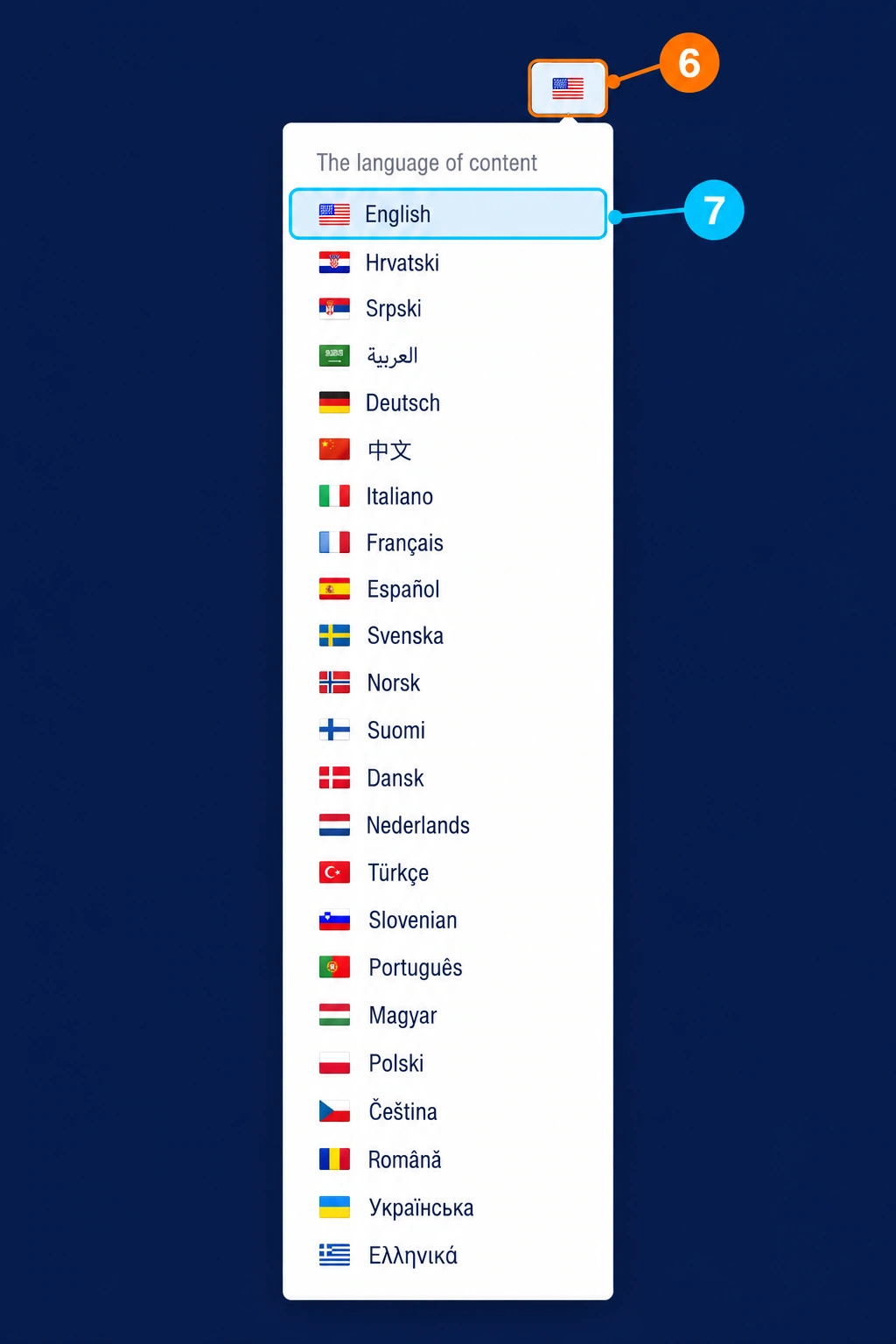
Before changing the language, save the intended changes or preserve your own unsaved text in an appropriate place. Changing the selection may reload the page; do not assume that the text has been saved.
Example: you can use the administration in English while editing a Croatian product description. In that case, the interface language is English, and the content language is Hrvatski. For an English translation, select English in the content selector and edit that version without overwriting the Croatian text.
Not all fields are necessarily separated by language. Do not change prices, availability, codes, and other business settings as if they belonged only to the selected translation; check their actual scope.
2. Check the content language before entering text
On the editing page, look for the available content language selection and confirm the desired version. Check the title or description already displayed to identify whether you are editing the expected text.
For a translation, do not overwrite the Croatian version in a foreign language. Select the appropriate language version, enter the translation, and save it separately. Names, descriptions, and SEO fields may be part of the same language record, so review all relevant fields.
- Record which product or page you are editing.
- Confirm the selected content language.
- Enter the text in the appropriate fields without replacing other language versions.
- Save and reopen the same version for verification.
3. Distinguish shared and local settings
Multiple public stores may display the same content record in different languages. A change to shared content may therefore be visible in multiple places. A separate view on another domain does not necessarily mean a separate CMS record.
Do not assume that selecting a language changes only one region or that every field is translated. The scope of prices, availability, business settings, and other data should be checked according to the specific record and configuration.
If you need content only for a specific storefront, align your intention with the Connect team before changing a shared record.
4. Check the public result
Open the appropriate public domain and language version. Check the edited title, description, links, and other elements you changed.
If the result is not as expected, check the record, language, and saved values in the administration again. Record the public page address and the verification time so support can compare the same view.
- You are editing the appropriate seller or the shared record you intended to change.
- The public view is open on the appropriate domain and in the appropriate language.
- Other language versions have not been replaced with the new text.
- Links lead to the expected pages in that view.
Final check before and after editing
- You recognize the seller and the desired storefront or combined view.
- You know whether you are editing a shared record or content for a specific storefront.
- The interface language and content language have been checked separately.
- The correct product or page is open, not a similar record.
- The translation has been saved and reopened in the appropriate language version.
- The public check was performed on the exact domain and selected language.
If something is missing, first check the filters, selected context, and saved values. Tell support the public page address, record name, storefront, selected content language, and expected result.
Frequently asked questions
I changed the menu language. Why isn't the description in another language?
The interface language and content language may be separate selections. Check the language version of the open record.
Why is the change visible on multiple CM pages?
Storefronts may use shared CMS records and templates. Check the content scope before making a local change.
Why can't I see another store or language?
Availability depends on the account, permissions, and configuration. State the required task and requested context to the responsible person or support.